Run a Flex Query
Instructions
Once you create a custom Flex Query, you can run it in Portal using the steps below.
Quickly Run a Saved Flex Query
- Click Performance & Reports > Flex Queries.
- Alternatively, click Menu in the top left corner > Reporting > Statements.
-
If you manage or maintain multiple accounts, the Account Selector opens. Search for and select an account.
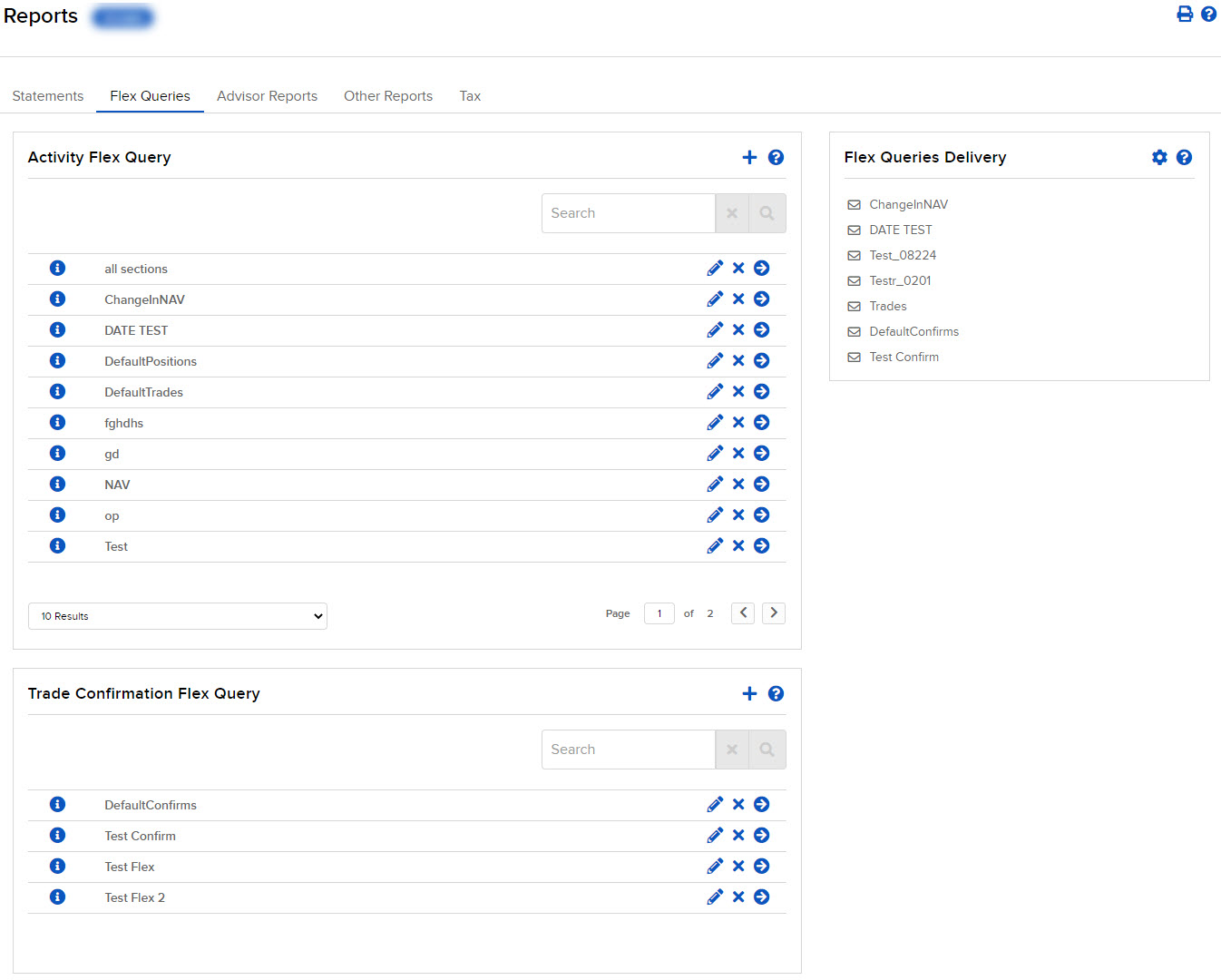
The Flex Queries screen opens.
-
Select the blue Run arrow icon to the right of the saved Flex Query you want to view.
-
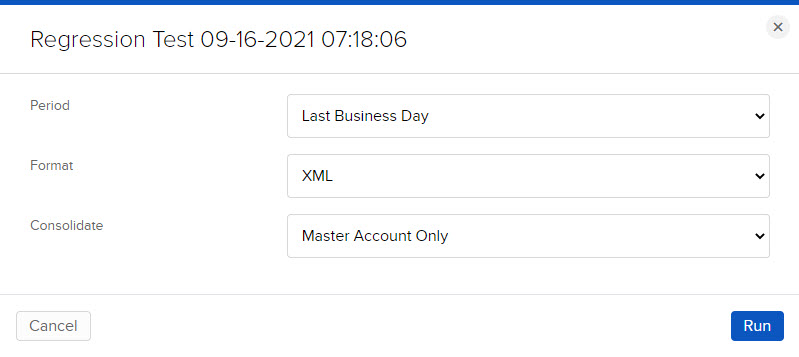
Select the Period, Format, and the way you want to configure the Flex Query. for multiple accounts and/or partitions.
-
Select which Multi-Account Format you want for your report; select how you want the statement to be configured for multiple selected accounts and/or partitions:
-
Master Account Only - Only shows information pertaining to the master account.
-
All-in-One Summary - All trades, balances, and positions consolidated as if one portfolio.
-
Model-by-Model Bundle - A collection of separate model statements, delivered together.
-
Model-by-Model Summary - A summary of trades, balances and positions by model.
-
Account-by-Account Bundle - A collection of separate account statements, delivered together.
-
-
Click Run.
-
When prompted, save the Flex Query or zipped file to your computer.
-
You can open your Flex Queries in programs that can read text or XML files.