DWAC Position Transfer
Instructions
The Transfer Positions screen lets you transfer stocks and warrants using DWAC (Deposit/Withdrawal at Custodian) between a Transfer Agent and your account. DWAC is an automated system for deposits and withdrawals of securities at DTC.
-
Click Transfer & Pay in the top left corner and select Transfer Positions.
-
If you have multiple accounts or account partitions, or if you have a master account and manage one or more client or sub accounts, the Account Selector opens. Select the account you want to use for this transaction, or use the search function in the Account Selector to find it. Click Continue to submit your account selection and close the Account Selector.
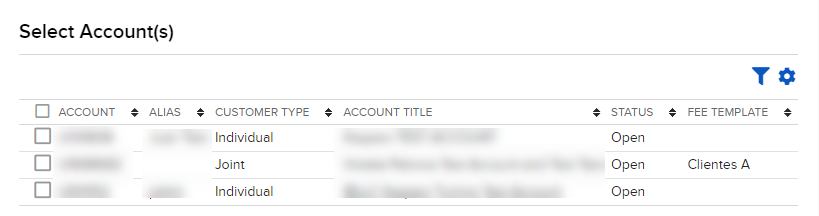
-
In the Transaction Type list, select one of the following:
-
Incoming - Transfer assets from a Transfer Agent to your account.
-
Outgoing - Transfer assets from your account to a Transfer Agent.

-
-
Select a region from the drop down list.

-
In the Method list, select DWAC (Deposit/Withdrawal at Custodian).

-
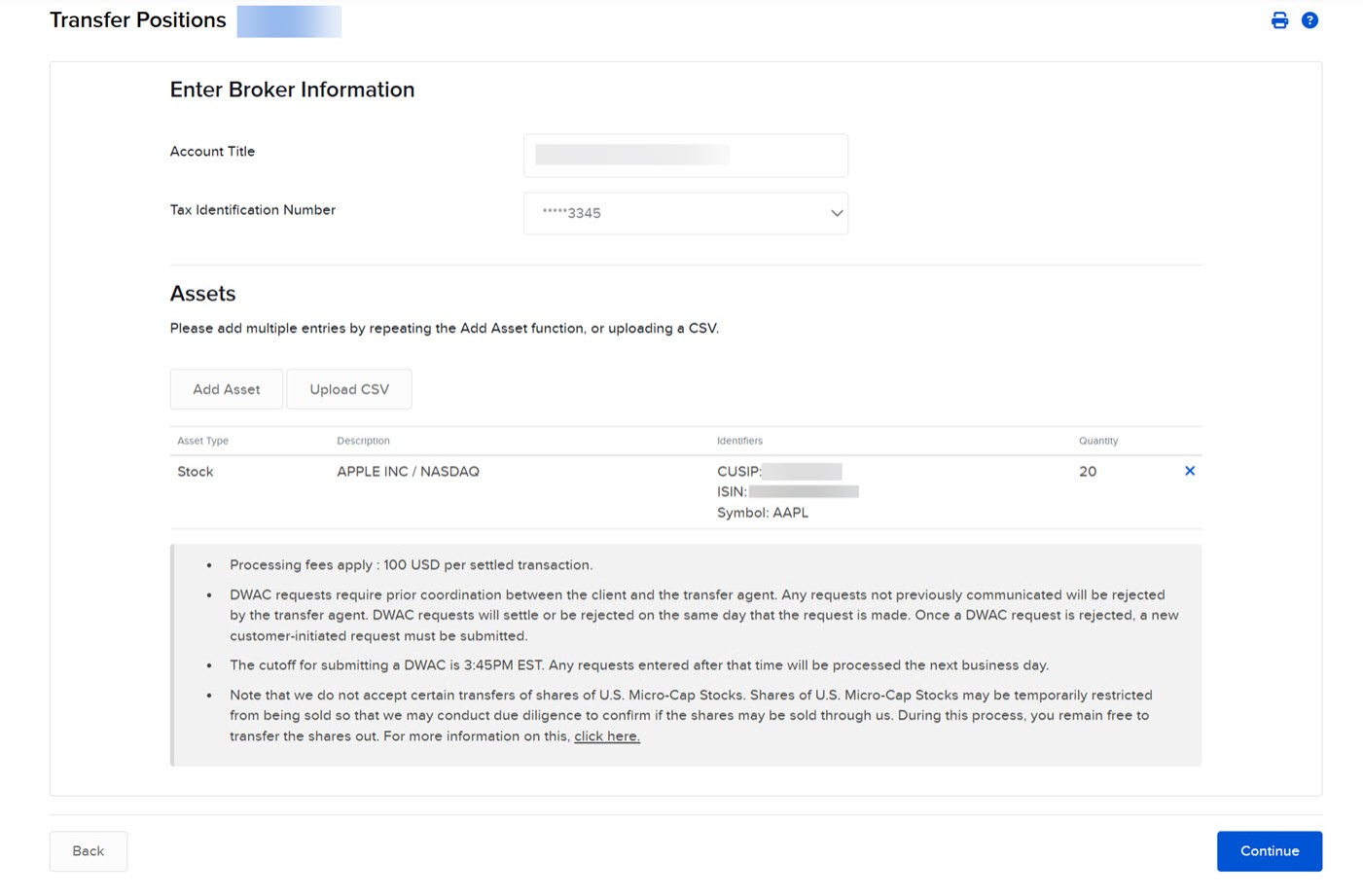
In the Broker Information section, verify that the information is displayed correctly. If the Tax Identification Number field is a drop-down list, select your Tax ID from it.
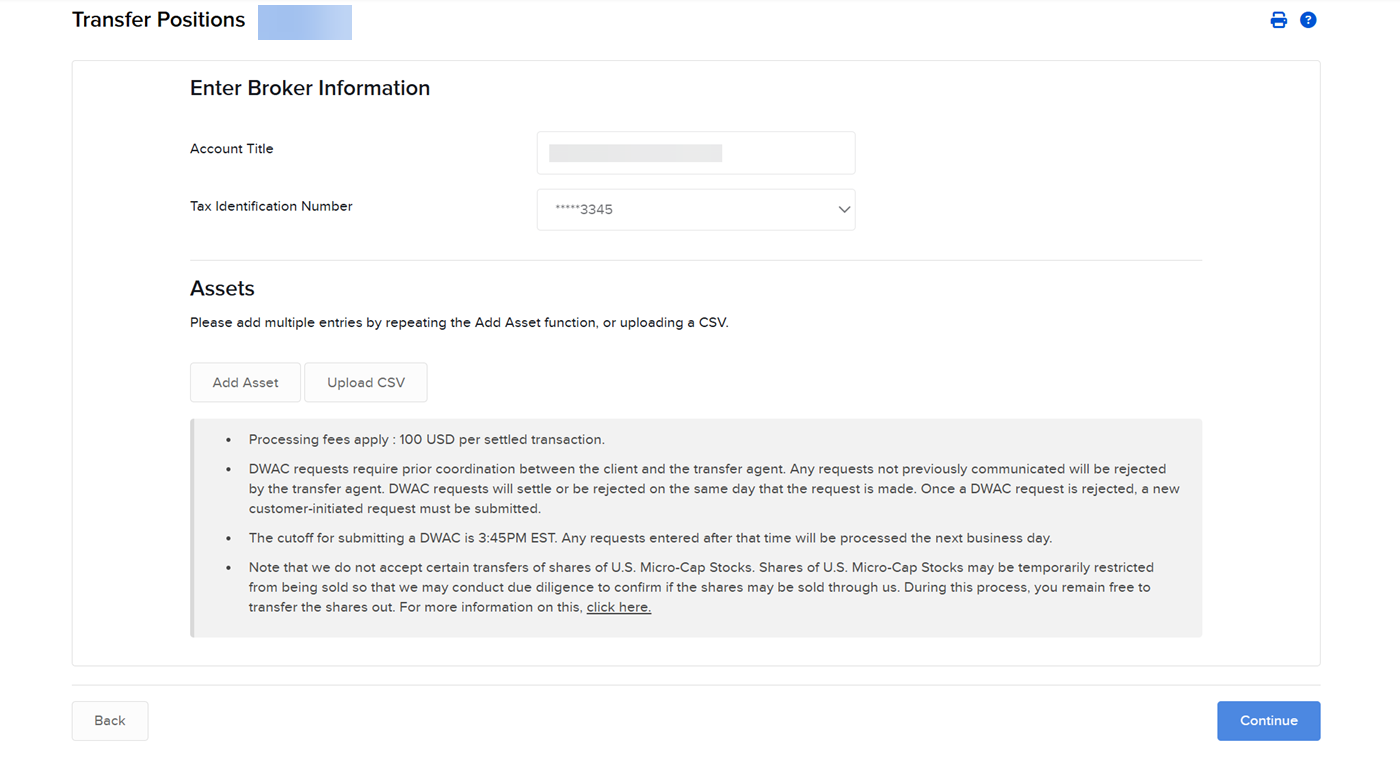
-
In the Transaction Information section, click Add Asset.
-
In the Asset Search window, select an asset type from the drop-down. For example, select Stock.
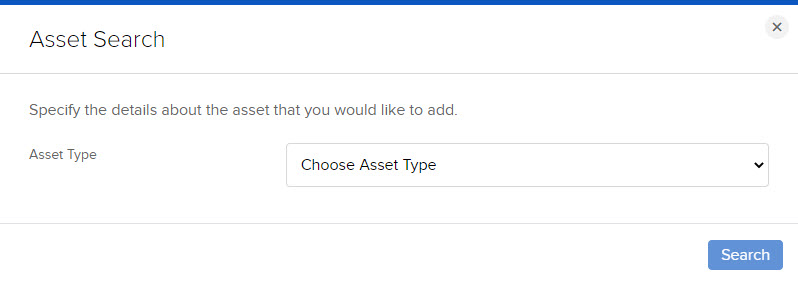
-
Select the Search Type (by Symbol, CUSIP number or ISIN number), then enter the symbol and, optionally, an exchange.
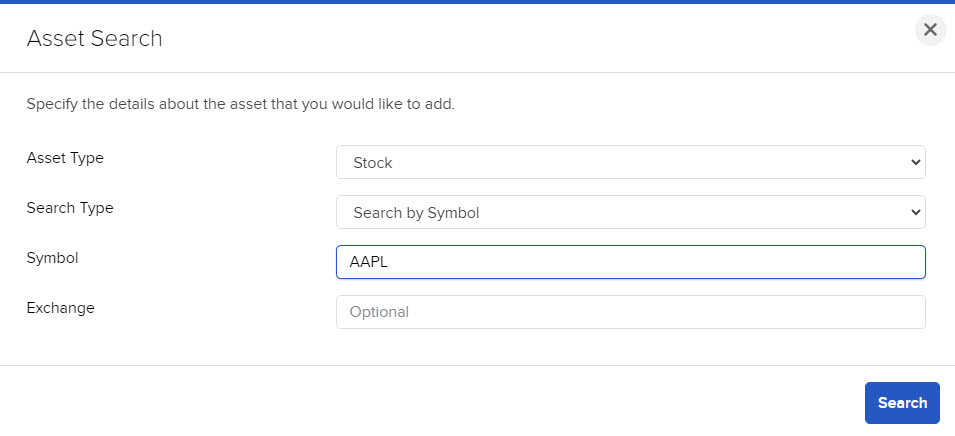
-
The Asset Search window refreshes with the matching symbol.
-
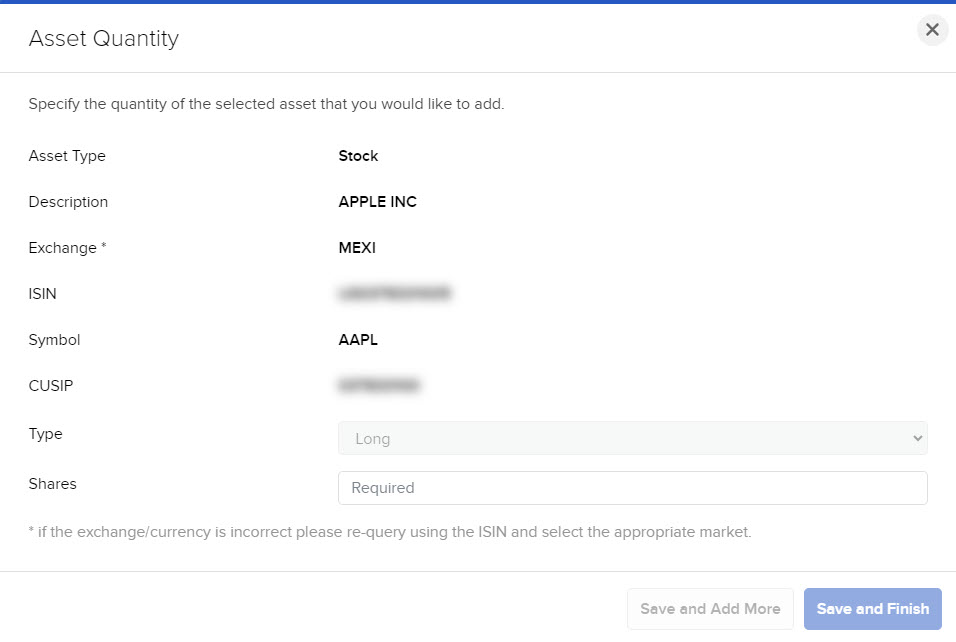
Enter the type of assets (Long or Short) and quantity (Shares) to transfer.
-
-
Click Save and Add More if there are additional assets to add, or click Save and Finish if you are done adding. The assets are added to the list of assets to transfer.
-
You can remove assets from the transfer by clicking the x in the asset list.
-
Click Continue.
-
On the page that appears, type your signature in the Signature field then click Continue.
-
Click Back to modify the transfer request.
-
Click Continue.
-
Click Upload CSV and follow the instructions presented on the screen. The file must contain certain fields which will be outlined on this pop-up.

- Once the CSV file has been prepared properly, click the Choose a File button to upload.
- Once the upload has been completed, click Submit. If there are no errors, a summary of the positions in your .CSV file and their eligibility for the transfer method you selected appears in the Transfer Eligibility Summary window.
- Click Finish.
To upload a CSV File: