Orders & Trades
Instructions
View Open Orders and Executed Trades through the Orders & Trades menu. To do so, please take the steps outlined below.
-
Tap the Account menu icon (head and shoulders) in the top left corner of the app and select Orders & Trades.
-
Click either the Orders or Trades tab.
-
The Orders tab will display working orders.
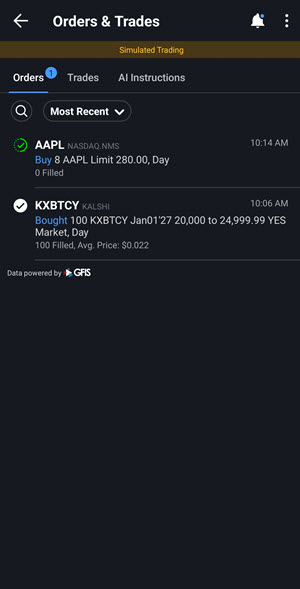
-
Click on a working order to display additional actions.
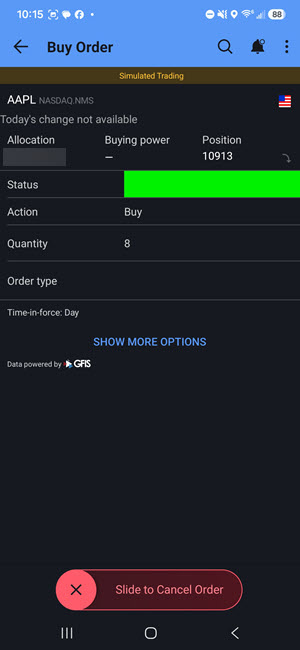
-
The Trades tab will show executed Trades.
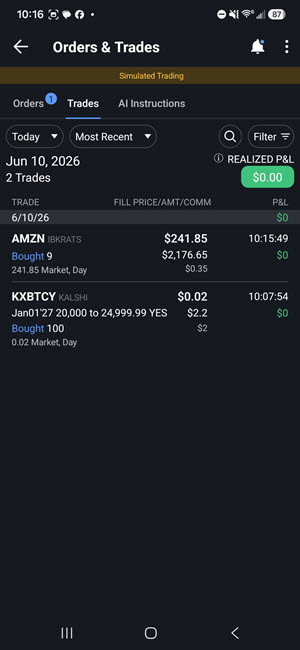
-
Sort and Filter the list by tapping any header buttons.
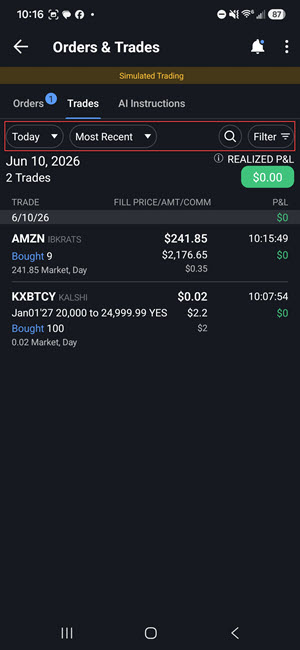
-
If you have a multiple account structure, you can tap the Account button to view trades for all accounts or select a specific account.