Configure Flex with AI
Instructions
Configure Flex with AI allows you to create and manage Flex Queries using plain‑English descriptions without manually navigating query fields or settings. This natural language interface interprets your data requirements and automatically builds the corresponding Flex Query for you. Simply describe the data you need, and the AI will configure either an Activity Flex Query or a Trade Confirmation Flex Query. Once configured, a preview of your generated query is displayed and includes placeholder data to illustrate the selected sections and columns. The final report can be downloaded in multiple formats (CSV, XML, or Text). You can also save queries as reusable templates and schedule them for future delivery.
The tool supports all account types currently available for Flex Queries. Data is available up to the previous business day with the exception of Trade Confirmations which can include trades data for the current day.
To utilize this tool, please take the steps outlined below.
-
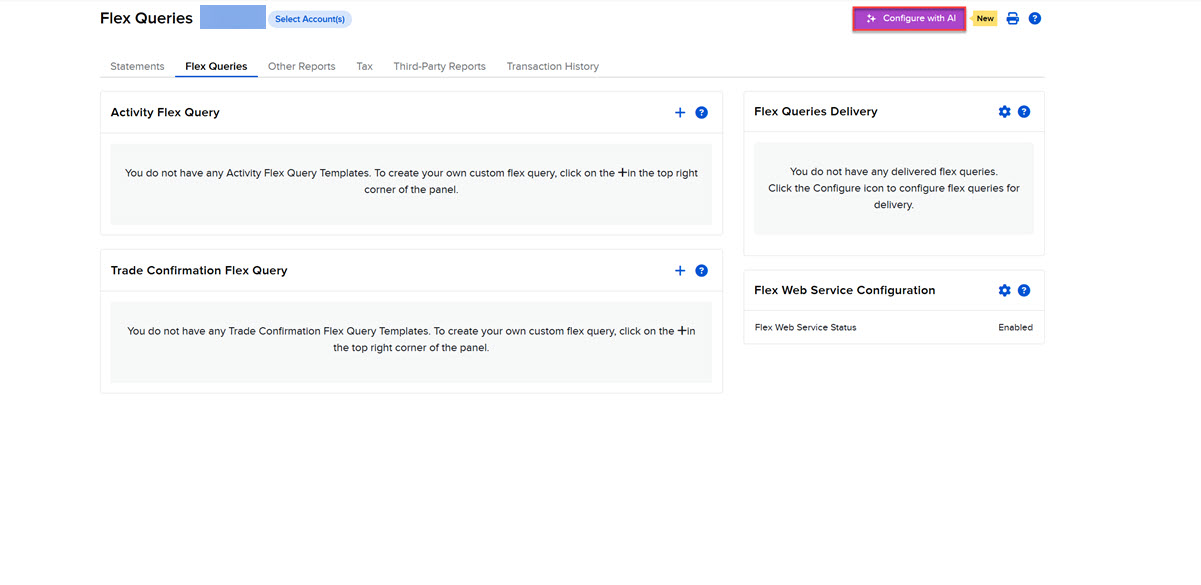
Click Performance & Reports > Flex Queries.
-
Click Configure with AI in the top right corner.
-
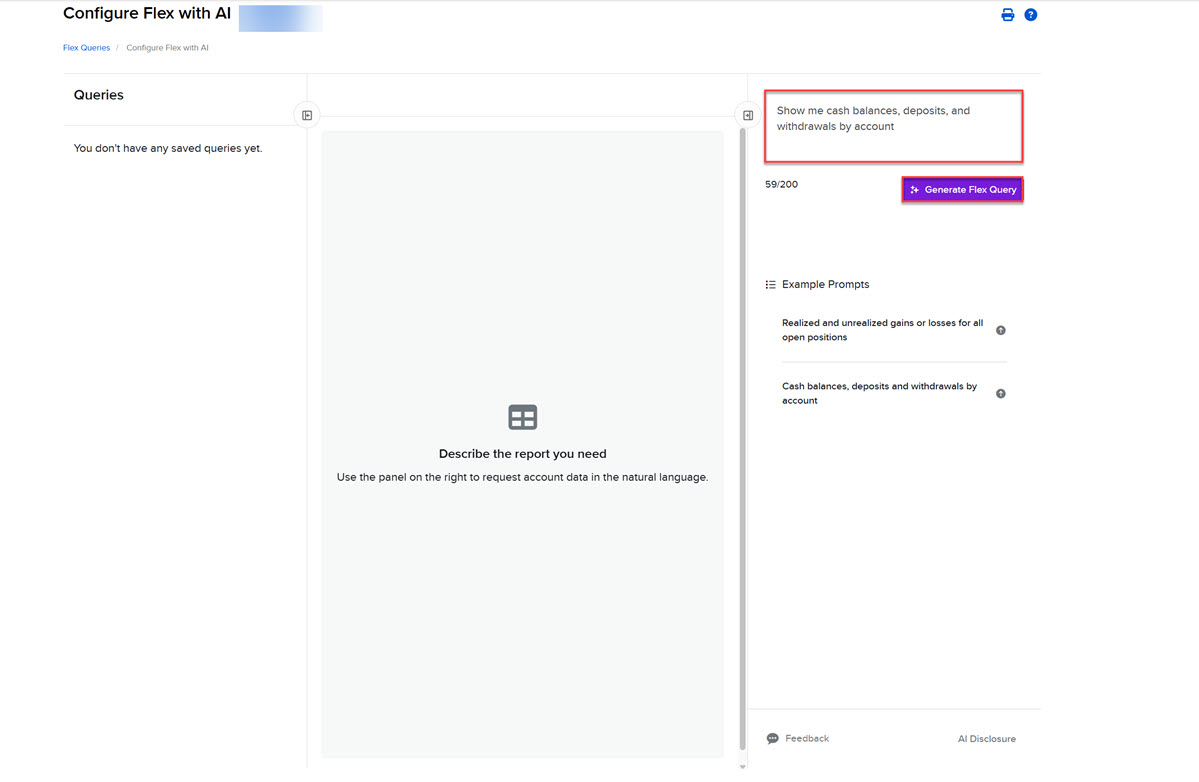
Describe the data you're looking to obtain in the top right corner and click Generate Flex Query.
-
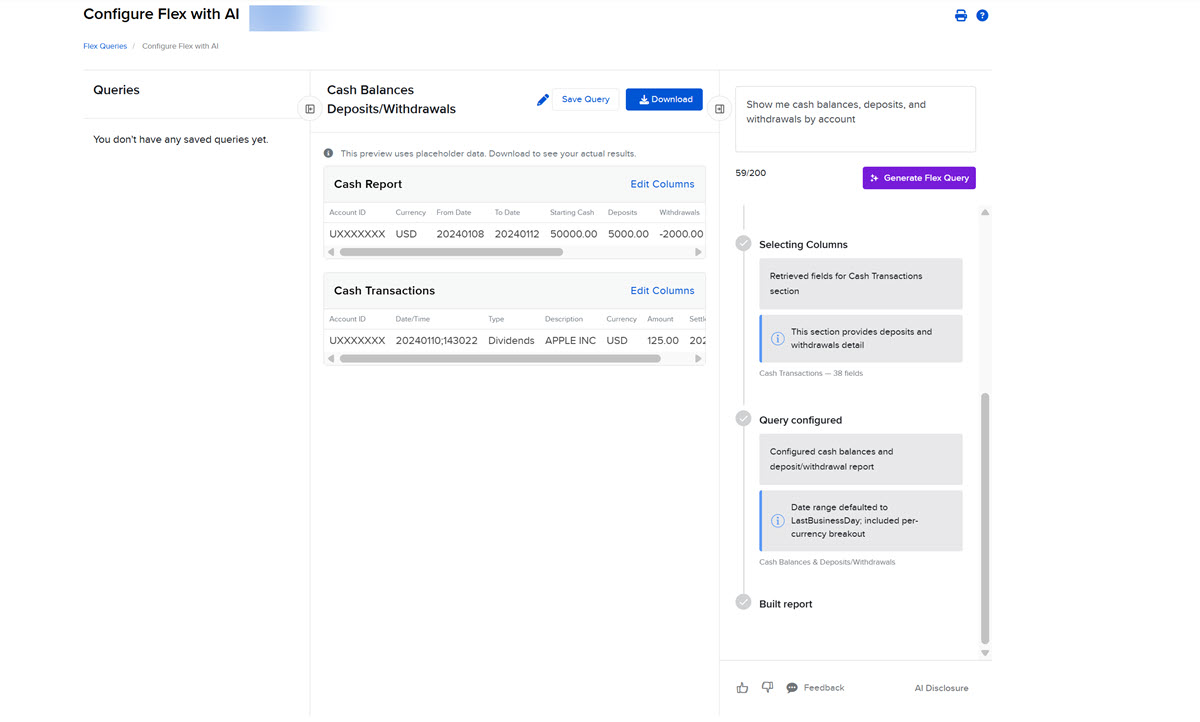
The preview of the generated flex query will populate on your screen.
-
At the top of the page:
-
Click the pencil icon to rename or delete the query.
-
Click Save Query to save this Flex Query.
-
Click Download to Download this report as CSV, XML, Text (Pipe), or Text (Tab).

-
-
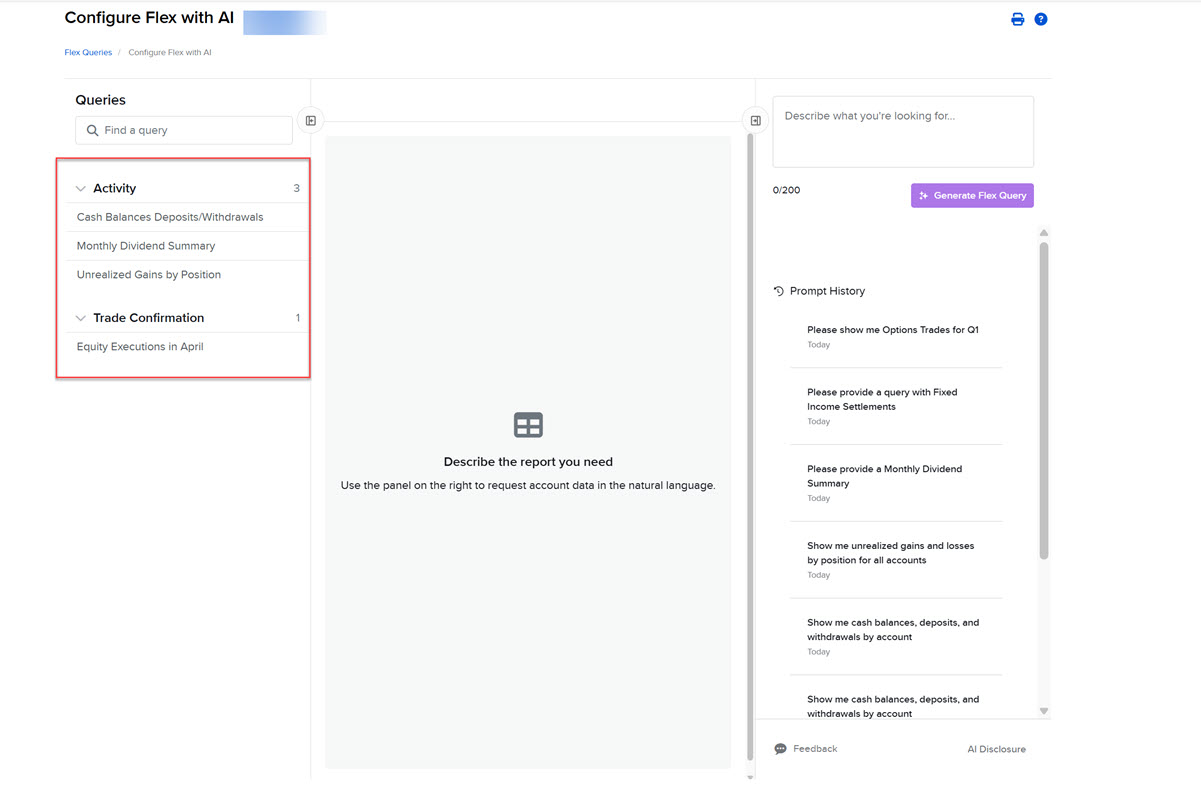
You may view any saved flex queries directly within the Configure with AI view by clicking the Activity drop-down menu.
Please Note: To configure any query for delivery, navigate back to the Flex Queries home page by clicking the Flex Queries breadcrumb in the top left corner.