Advisor Portal Release Notes 2025
 December 2025: Book of Business
There have been updates to IBKR Advisor Portal that make managing clients and accounts faster and easier. The updated navigation streamlines your workflow and provides access to the new Book of Business, your new central hub for account management.
We’ve refined the navigation to clearly separate tools for administering clients from those for managing accounts, making it easier to find what you need.
-
Client Administration centralizes all client-related tools, enabling advisors to manage contacts, households, tasks, billing, communications, and client preferences from one place. It supports efficient service delivery through integrated email, calendar, and goal-tracking features.
-
Account Management focuses on portfolio and account oversight, offering tools for trading, reporting, transfers, billing, and performance analysis. It provides a complete view of the advisor’s book of business and simplifies daily account operations.
The New Book of Business now serves as the primary hub for all account activities, conveniently accessible under Account Management. This upgrade streamlines navigation, reducing clicks and enabling instant access to all the accounts of your full client base.
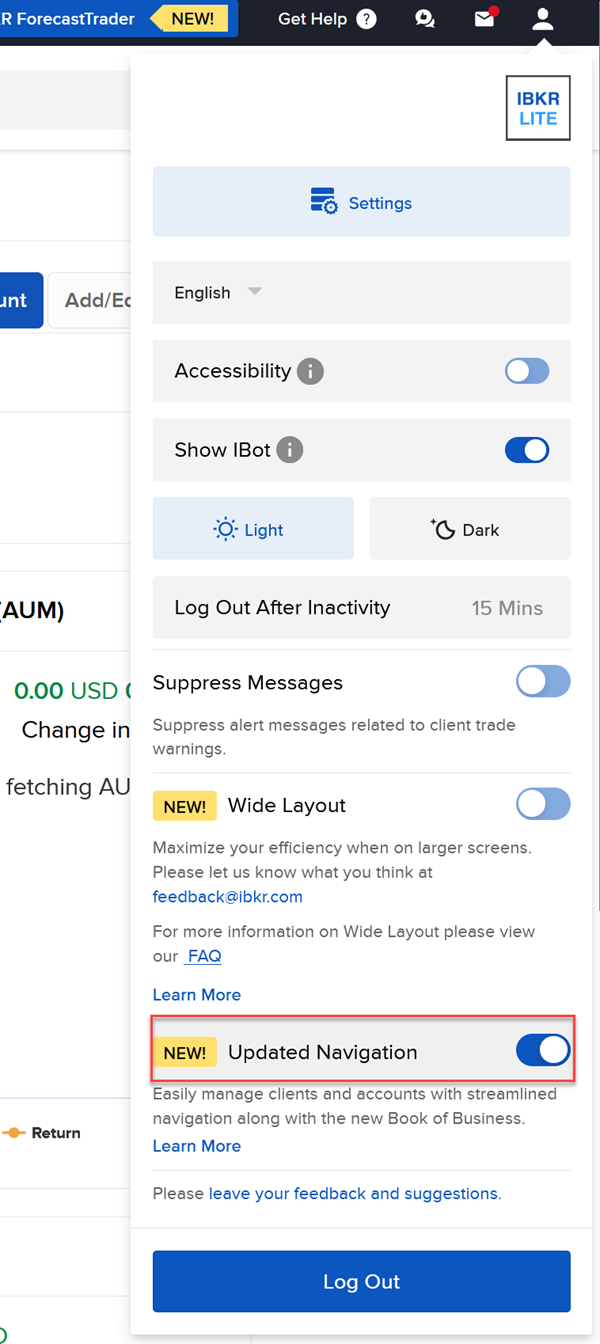
To open Book of Business, enable the new Updated Navigation in the settings by taking the steps outlined below.
-
Navigate to the head and shoulders icon in the top right corner and select the toggle icon to the right of Updated Navigation.
-
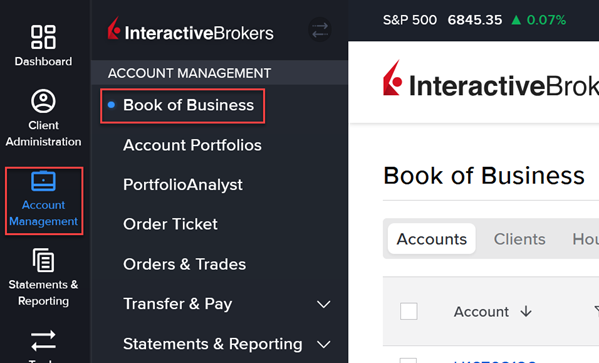
You may now open the Book of Business page by selecting Account Management > Book of Business
November 2025: Automatic Update to Mailing Address, How to Close Specific Lots of Your Position
Automatic Update to Mailing Address
We have begun to automatically update mailing addresses for advisor client accounts in cases where we receive a notification from the USPS that the clients have updated their address with them.
-
USPS notifies us that the client has notified the USPS of an updated mailing address.
-
We read in the file and update the mailing address based on the information that the client provided to the USPS.
-
Client will be presented with the message upon login which informs them that IBKR received the updated address information from USPS and that IBKR has updated their mailing address. The client will be prompted to update the residential address with a simple click.
How to Close Specific Lots of Your Position
IBKR now offers the ability to choose tax lots when placing a closing order. For instructions on how to do this, please see "How do I close specific lots of my position?"
October 2025: Native Language Support for Docusign, Streamlined - ACH Instructions Creation
Native Language Support for Docusign
We are working on incorporating support for native language into the Docusign workflows.
-
Spanish, Portuguese and Hebrew for applications and for fee approval forms has been released globally.
Streamlined - ACH Instructions Creation
We have released the ability for Streamlined advisors to create ACH instructions for their clients.
Process will be:
-
Advisor will create the instruction by following the normal path -> Transfer and Pay -> Transfer Funds -> Select the account -> select withdrawal -> select Connect Your Bank via ACH. Advisor completes the bank information.
-
IBKR will then conduct an automated, immediate review upon entry.
-
If the review is successful, the client will only need to consent using the Streamlined consent process.
-
If the review fails
-
The FA will be provided with a means to immediately upload a bank statement for the client.
-
The client will consent.
-
A ticket will be automatically created which will contain the document provided and can be used for communications.
-
Once the instruction is approved or rejected, the ticket will automatically be closed.
-
-
If a statement is required, once it has been supplied by the advisor, the request will be manually reviewed by IBKR.
-
-
-
Once the review is complete, the instruction will be available for use if approved.
September 2025: New Support Platform: Get Help
We're pleased to announce the upcoming release of Get Help, our enhanced support platform designed to provide you with faster, more efficient assistance. The rollout will occur over the next few weeks.
Key improvements include:
-
Streamlined experience – Simplified navigation to resolve issues quickly
-
AI-powered assistance – Intelligent recommendations and instant answers
-
Consolidated FAQ database – All resources in one centralized location
-
Enhanced search functionality – Find relevant solutions faster than ever
-
Direct support access – Seamless connection to IBKR support when needed
Plus, all your familiar tools are still here! Get Help incorporates all the tools that were previously available on the Support page, so you won't miss anything you're used to – they're just easier to find and use now.
We built Get Help with one goal in mind: making your life easier. Get Help will be your primary gateway to support resources, combining self-service tools with direct assistance options to minimize resolution time and maximize productivity.
You can access Get Help by clicking "Get Help" in the upper right-hand corner of Portal or by clicking on "Contact Us" in the upper right-hand corner of Trader Workstation. For additional details, please reference our User Guide.
July 2025: Docusign Workflow for Approval for Fee Changes
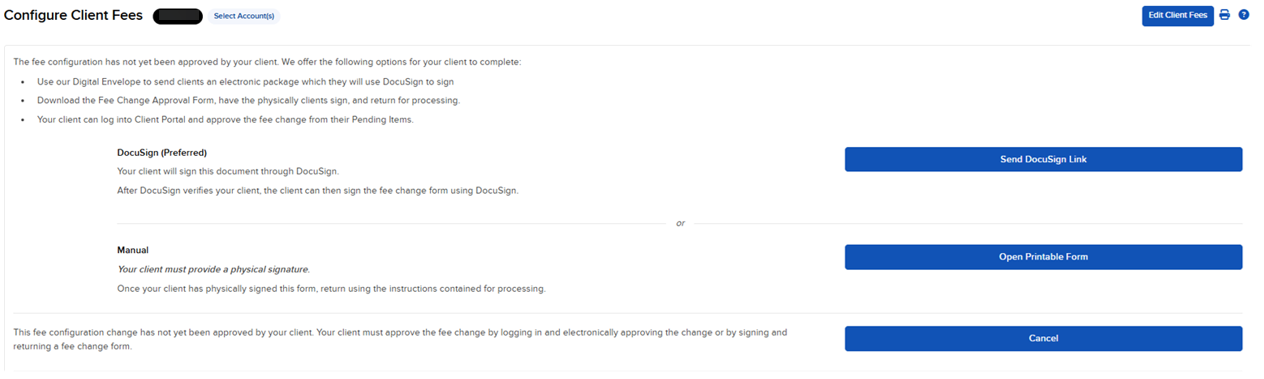
Docusign for Fee Approval changes has been released globally. The options shown on the screen below are what are available. Key points:
-
Docusign was added as a new option.
-
Client Portal consent is still available to all.
-
The manual generation of the PDF requires a physical signature.
June 2025: Advisors Now Allowed to Request One-Way Transfer Associations Between Accounts, DocuSign Now Available for Non-Professional Advisors, Advisor Client Portal Updated
Advisors Now Allowed to Request One-Way Transfer Associations Between Accounts
Advisors can now submit a Transfer Association.
-
FA will navigate to the Transfer Funds or Transfer Positions page and select the SOURCE account.
-
FA will select the ‘Internal Transfer’ option.
-
If the DESTINATION account is not available, the FA can click on the hyperlink which will allow the association request to be entered.
-
FA will enter the DESTINATION account number and MUST provide a reason.
-
Important – there are key notes presented on this page.
-
-
FA will be presented with the agreement – that the client will need to physically sign.
-
The FA will be shown the confirmation page where they will be given the ability to download the authorization form that the source client will need to physically sign.
-
Once the completed form has been uploaded, the request will become active and the Exception Transfer Group will review.
DocuSign Now Available for Non-Professional Advisors
We have released the ability for Non-Professional advisors to use the Docusign workflows which have been and will be released.
Advisor Client Portal Updated
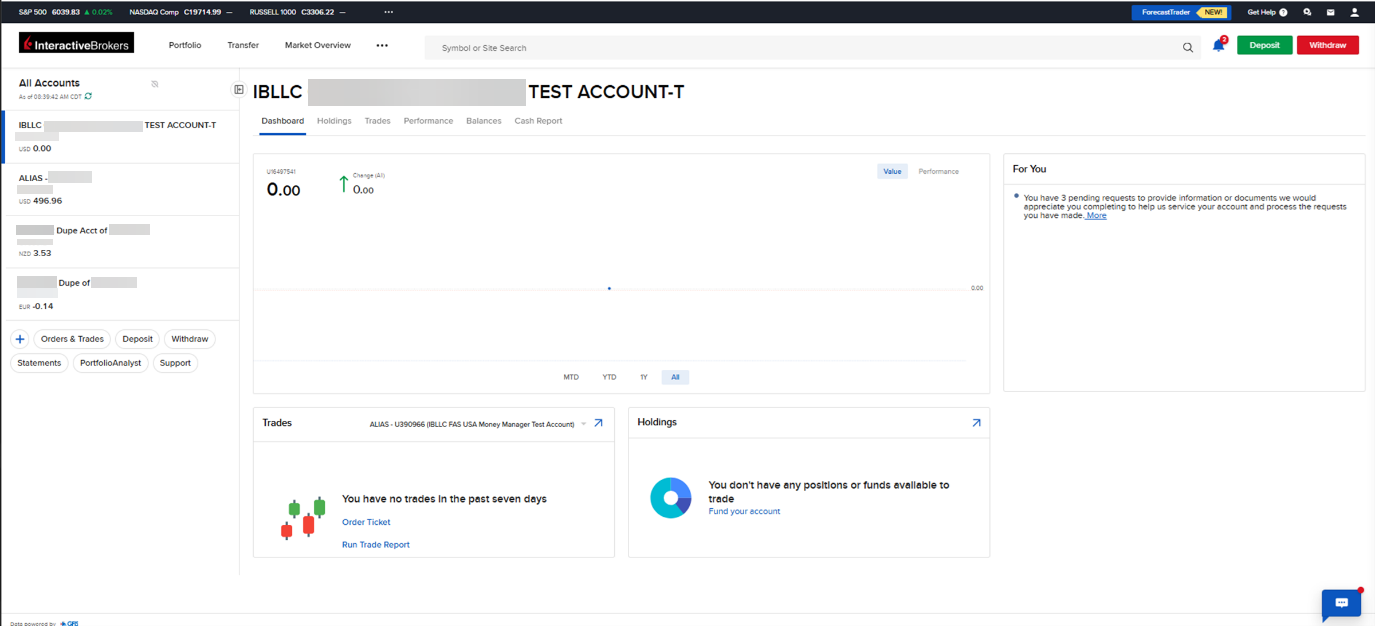
We have released a new version of the Advisor Client Portal. The new version is intended to be a simpler, more streamlined presentation for clients who are managed by advisors by eliminating some of the unnecessary widgets.
May 2025: Pending Username Status, Docusign for Fee Approvals, Docusign ID Verification - Country Expansion
Pending Username Status
A new enhancement was released that will allow clients to see why a username is pending within Portal. This should (hopefully) reduce the number of calls, emails, tickets of clients asking why their username has been pending for so long. This works in Individual, Orgs, FAs, FDIB accounts.
To see the status, click on the Pending status next to the username in question. The user’s guides have been updated and there will be a few more FAQs added on the topic.
User Guide: https://ibkrguides.com/advisorportal/uar/addingauser.htm#:~:text=View%20Status%20of%20Pending%20Username
Docusign for Fee Approvals
We have begun to roll out the Docusign Fee Approval workflow. We are currently offering this to the same group of advisors that we have rolled out the fully electronic application Docusign workflow. We will look to roll this out to all others quickly.
Docusign ID Verification - Country Expansion
We have added Docusign support for an additional ~150 countries and territories, bringing the total to over 200, since Docusign has expanded their ID Verification coverage. User Guide has been updated.
https://www.ibkrguides.com/advisorportal/homemenu/docusign-information.htm
April 2025: Transaction History
We have added a new Transaction History page under Performance and Reporting, allowing clients to view all their transactions in one place without needing to run an activity statement. This feature provides a more comprehensive view than the current page, which only shows position and cash transfers.
To learn more about the new Transaction History page, visit the user guide.
March 2025: Client Security Tool for US Professional Registered Advisors, Transfer on Death (TOD) for Joint Accounts Update, Documents & Agreements Downloads - Now Available
Client Security Tool for US Professional Registered Advisors
We have released the ability for US Professional registered advisors to provide certain clients with a temporary password. Eligible advisors can access the tool from the Support page in Advisor Portal. A detailed User Guide can be found by clicking the Help icon on the Client Security Tool page in Advisor Portal.
Key points:
-
This tool only supports providing password assistance to certain clients. It does NOT allow the advisor to provide security device assistance.
Access Rights:
-
By default, only the primary master user has the Client Security access right.
-
Additional users will need to have the access rights assigned. This right is located on the Client Management Access page in the User Configuration screens.
Client Qualification:
-
Clients must either have a verified mobile number or be enrolled in IB Key to qualify. Clients who are not eligible will be required to call in to IBKR for immediate assistance.
Transfer on Death (TOD) for Joint Accounts Are Now Included in the Semi-Electronic Application
We are now providing advisors the ability to configure Transfer on Death (TOD) for joint accounts during the semi-electronic application ONLY for:
-
Joint Tenants with Eights of Survivorship
-
Tenants by Entirety.
Documents & Agreements Downloads - Now Available
We have released a feature which will allow eligible advisors to download certain agreements and documents from Portal themselves.
-
This feature must be activated by IBKR.
-
The accessing user must have two-factor authentication enabled.
-
Documents will be produced as a zip file.
January 2025: Advisors Can Now Request E-mail Updates, Advisor Clients Now Have the Ability to Request a Designation Change to Another Advisor
Streamlined – Advisors Can Now Request E-mail Updates.
Advisors enrolled in Streamlined can now update email addresses of clients who meet one of the following conditions:
-
If the client has two-factor authentication enabled.
-
If the client has access to the old email address of record.
-
Advisors will not be able to use this process for clients that do not meet the criteria and will be directed to customer service for assistance.
Advisor Clients Now Have the Ability to Request a Designation Change to Another Advisor
Advisor clients can now request to move their accounts from one advisor to another by submitting a request through Client Portal.
Clients will navigate to Settings -> Manage Account Linking and then select the Move My Account to a New Advisor option.
Read more about moving your account to a new advisor in the user guide.
As with any linking requests, clients will need to enter the new advisor’s account number and account title. They will need to sign a new agreements, including the Client Agreement, Advisor Agreement and designation change disclosures.
All linking rules, such as the following, will apply:
-
Client and new advisor must be the same entity.
-
Client and new advisor must be the same Pricing Structure (PRO/LITE).
-
Client cannot have open Money Manager accounts.
-
Client cannot move the account has trading permissions that the FA does not have sufficient trading experience to trade.
-
Client limits on the new advisor cannot be exceeded.
-
Moves to non-professional, Family Group and Family Office master accounts require review and approval by IBKR.