Version 2.2 - Investment Theme Screeners, Display Synthetic Price in Banner of Option Chain
Investment Theme Screeners
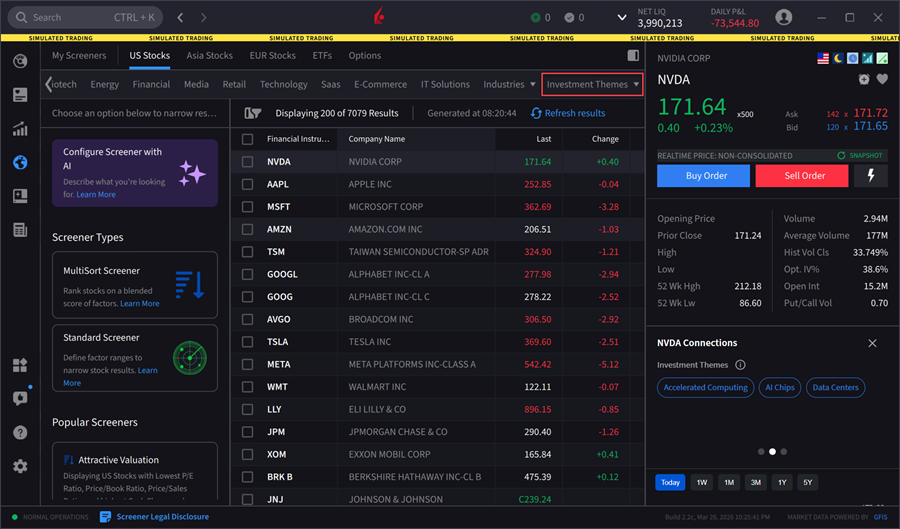
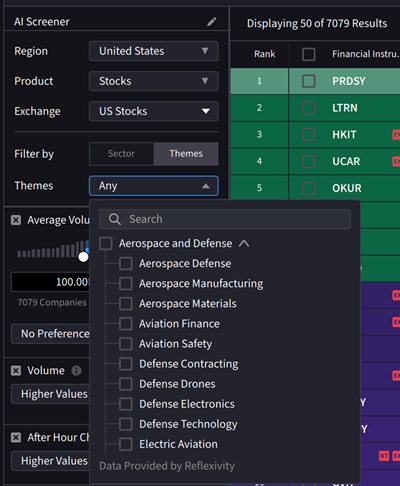
Investment Themes have been added to Screeners allowing you to explore companies and details connected to a specific theme. To access this, navigate to the Screeners menu item and select the Investment Theme tab.
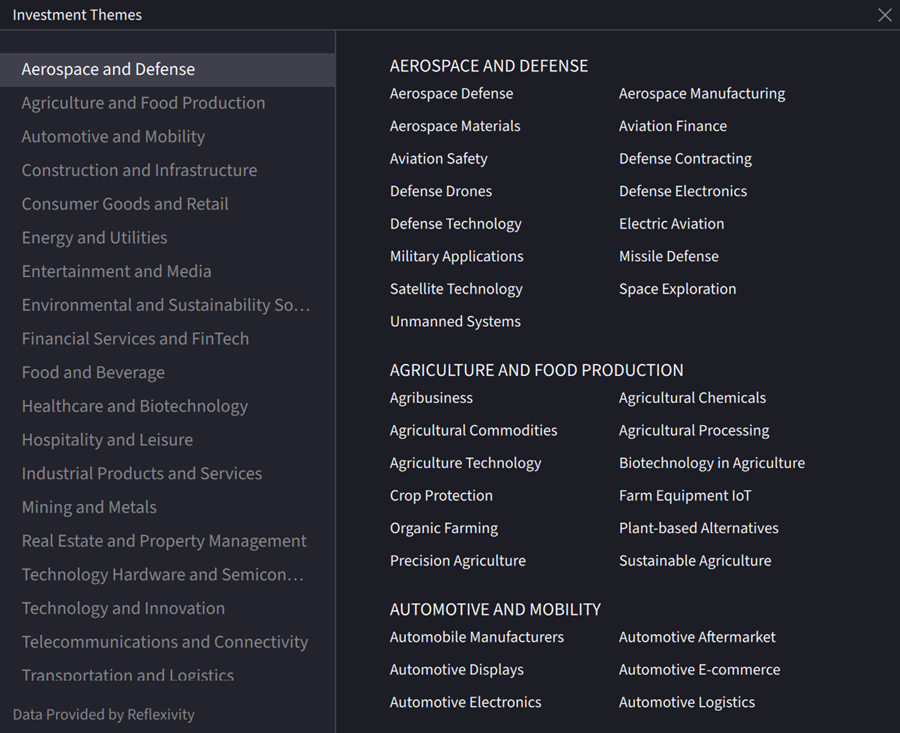
A new page will appear on your screen allowing you to select an Investment Theme.
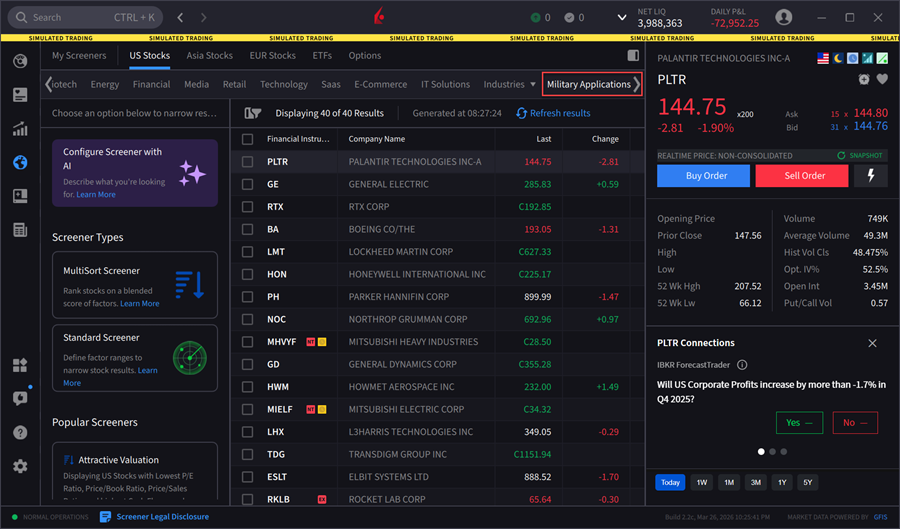
A list of companies related to the specified Theme will populate in the screener.
You may also add investment themes to your saved screeners in the My Screeners tab by navigating to a saved screener and selecting the Themes drop-down menu.
Display Synthetic Price in Banner of Option Chain
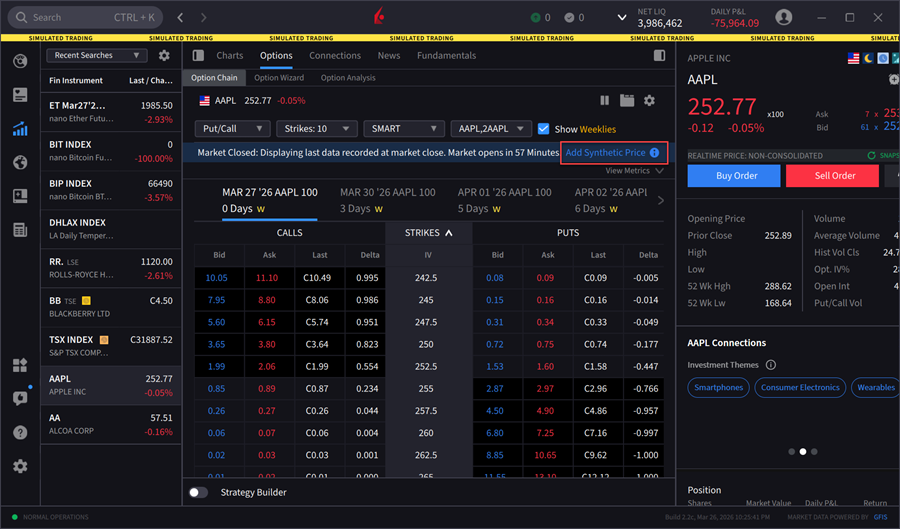
We have added the Synthetic Price calculation in Option Chain. This uses an algorithm that incorporates market data and option details to estimate implied volatility and generate a theoretical option price. Inputs to the algorithm include but are not limited to the underlying asset price, interest rates, dividends estimates, option right, strike price, time to expiration, and volatility estimate. The synthetic price is updated continuously as market conditions change.
The Synthetic Price option will populate in the Option Chain before or after market hours. However, you may also add this column to your Option Chain by navigating to the configure wheel icon in the top right corner of the Option Chain > Select the Columns tab > Under Available Columns expand the Options section > Select the + icon next to Synthetic Price.