Version 4.0 – Font Customization, Close Position Enhancements, Trades on Chart, Color Theme Customization
Font Customization
IBKR Desktop now provides additional font size options, allowing you to customize the interface based on your viewing preference.
-
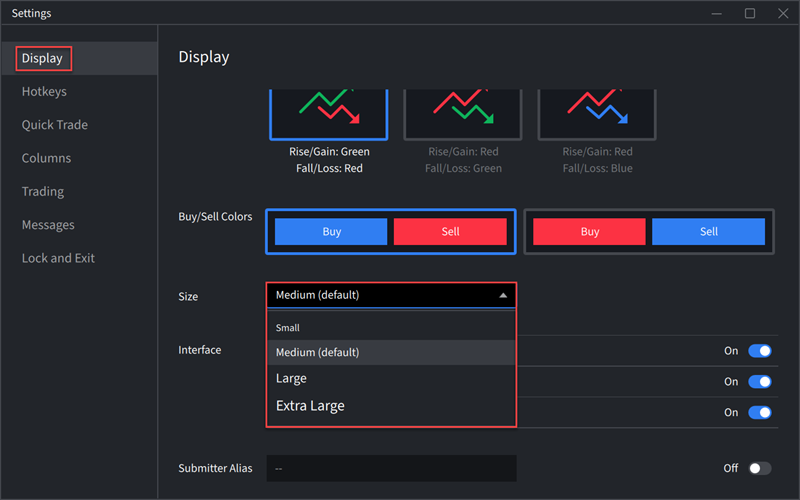
Navigate to the Settings (gear) icon in the bottom-left corner.
-
Select Display.
-
From the Size section, click the drop-down menu and choose Small, Medium (Default), Large, or Extra Large.
Close Position Enhancements
The Close Positions tool in IBKR Desktop provides a streamlined way to close all or selected positions from a single interface. Customize the amount and order parameters for greater control when closing multiple positions. To use this tool, please take the steps outlined below.
-
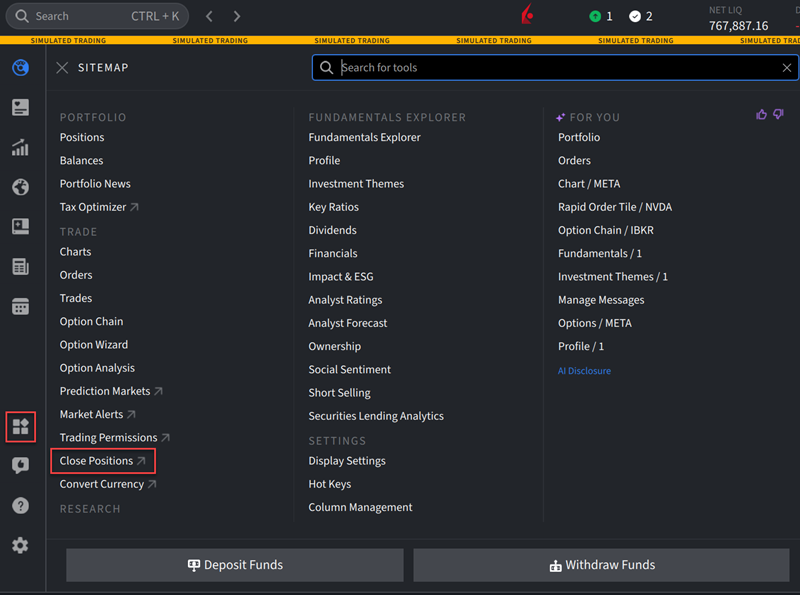
Navigate to your Portfolio and click the 3 dotted icon in the top right corner followed by Close Positions.

Alternatively, click the Sitemap menu icon in the bottom left corner and click Close Positions.
-
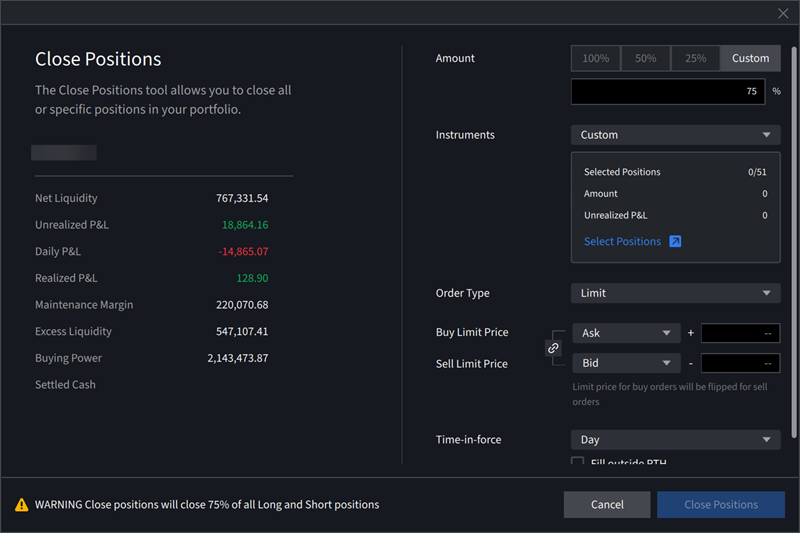
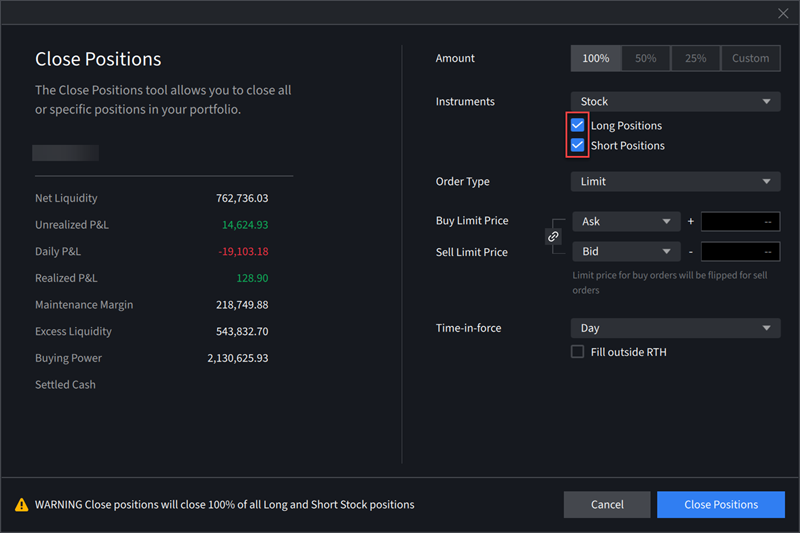
Select the account in the drop-down menu if applicable and choose whether you would like to close 100%, 50%, 25%, or a Custom amount of positions.
-
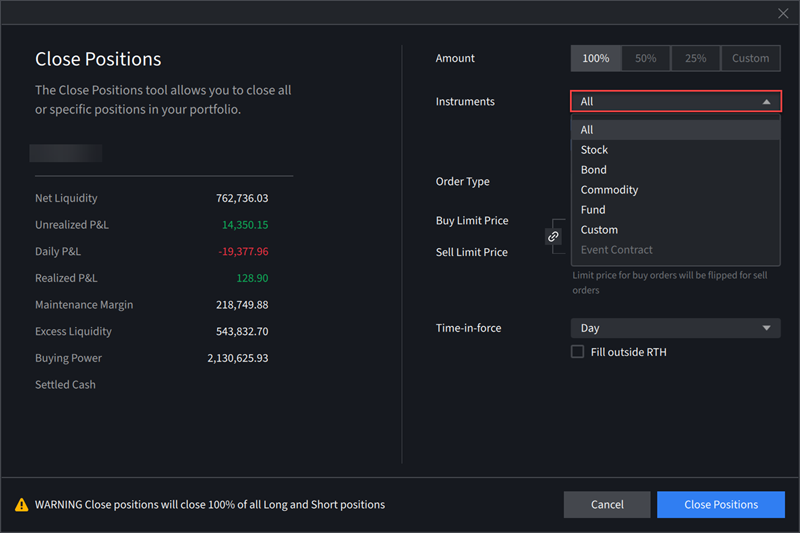
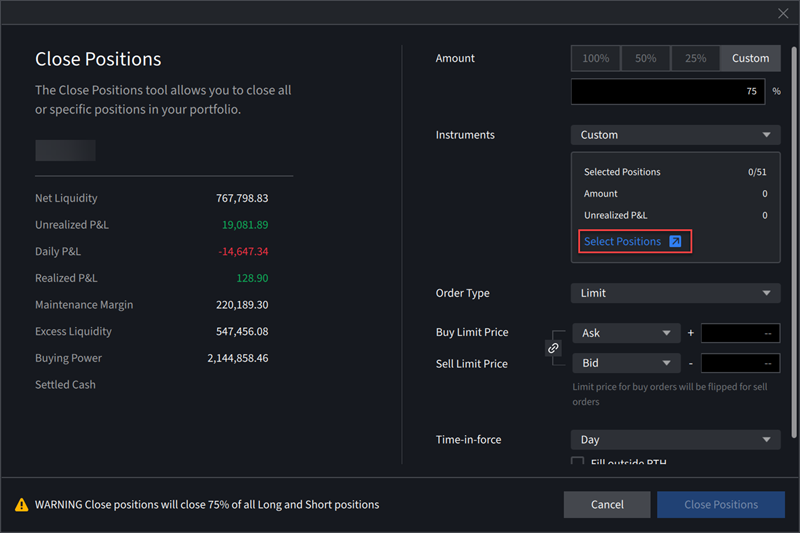
If selecting a Custom amount, click the Instruments drop-down menu and choose All, Stock, Bond, Commodity, Fund, or Custom.
-
If you select a specific instrument type, such as Stock or Bond, select the checkboxes next to Long Positions and/or Short Positions to specify which positions you want to close.
-
If you select Custom, click Select Positions to choose the individual positions you want to close.
-
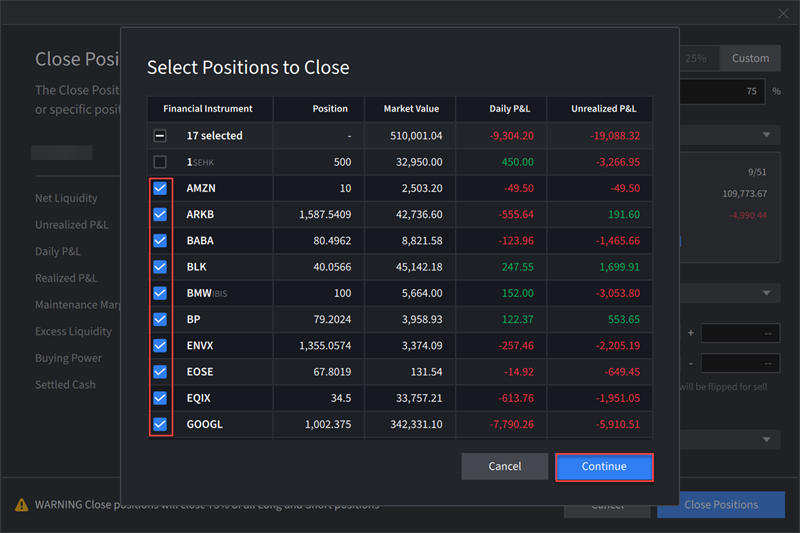
In the pop-up window, select the checkboxes next to the positions you want to close, then click Continue.
-
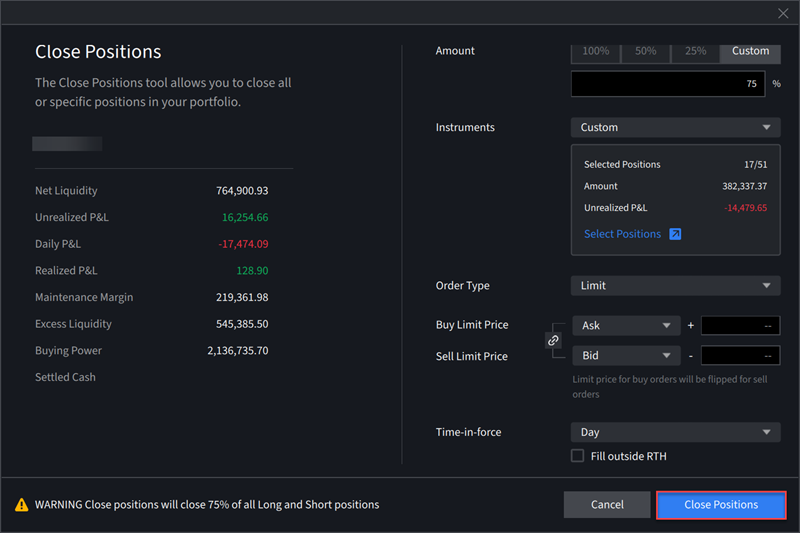
The Close Position window will populate with your selections. Enter the additional order parameters and click the blue Close Positions to continue.
-
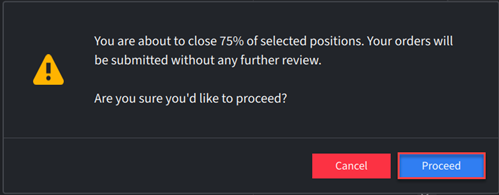
Confirmation pop-ups will appear on your screen. Read these entirely and press Proceed to place these orders.
-
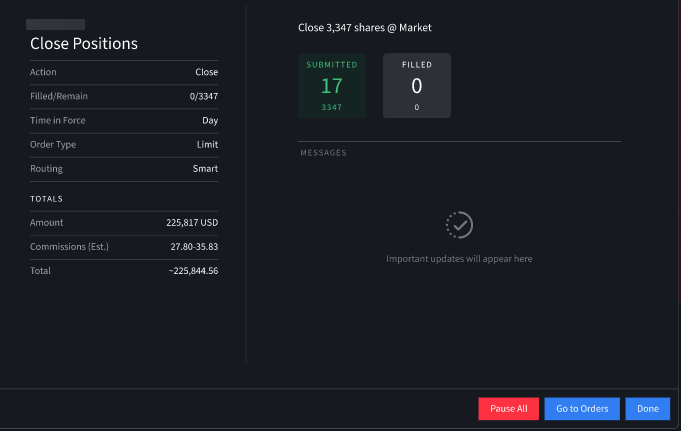
The order has been submitted. A pop-up will appear with the status of the order.
Trades on Chart
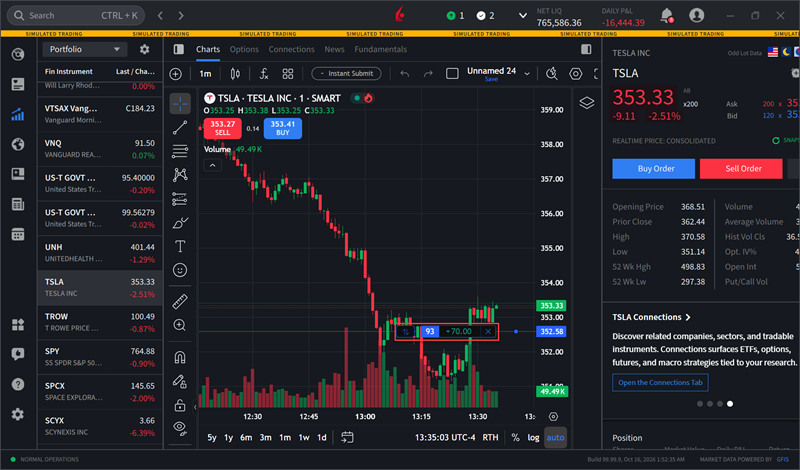
You can now view your executed trades directly on charts, making it easier to review trading activity alongside an instrument’s price movements. Executed trades are displayed for the selected instrument, providing a convenient visual reference of your trade history without navigating away from the chart. To use this tool, please take the steps outlined below.
-
Navigate to the Quote panel.
-
Select an instrument from the left side of the chart.
-
Your executed trades for the selected instrument will populate on the chart.
Color Theme Customization
IBKR Desktop now offers a System color theme option, allowing the platform to automatically switch between Light and Dark themes based on your operating system’s appearance settings. This provides a more seamless viewing experience by keeping IBKR Desktop consistent with your device’s preferred display theme. To use this tool, please take the steps outlined below.
-
Navigate to Settings (gear icon) and select Display.
-
Under Color Theme, select System.
-
IBKR Desktop will automatically follow your system settings and switch between the Light and Dark themes accordingly.