Statements
Instructions
This screen lets you run statements and create your own customized statements.
Statements Summary Screen
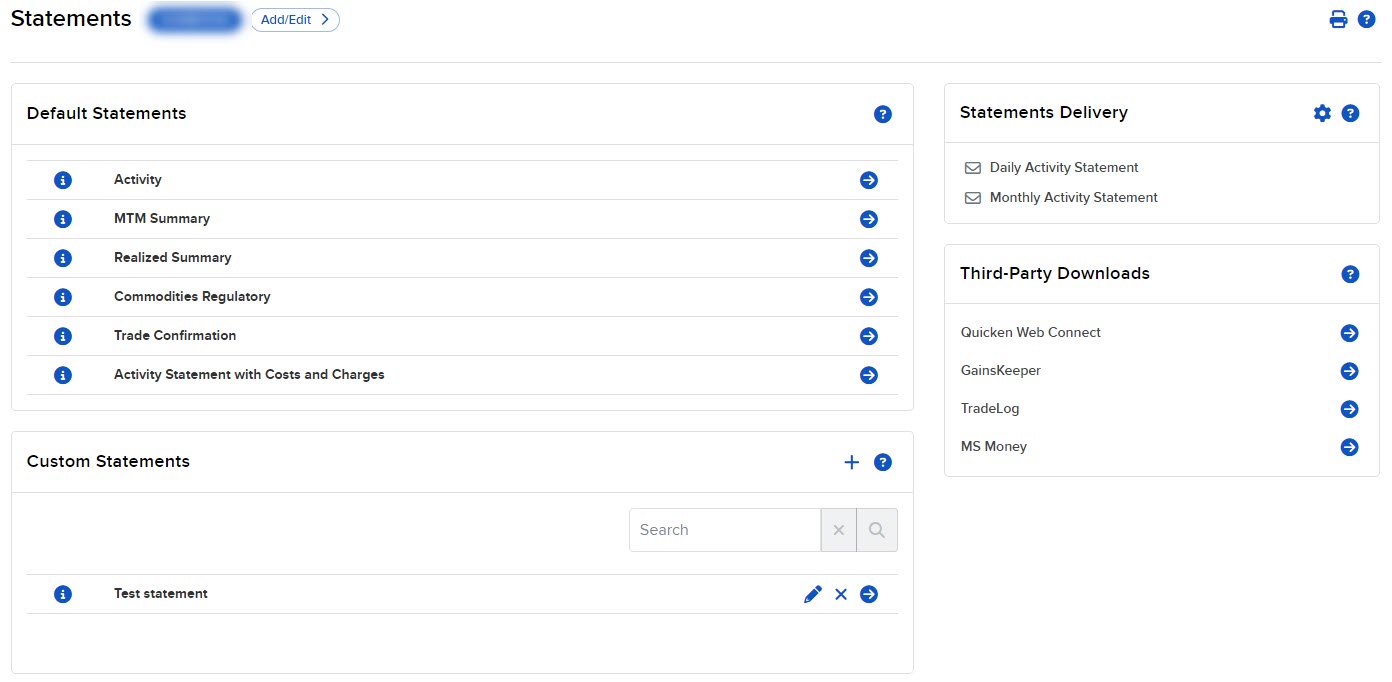
There are four main panels in the Statements summary screen:
-
Default Statements: Lets you quickly run default statements over preset time periods.
-
Custom Statements: Lets you view and run saved customized statements and flex queries, and create new customized statements and flex queries.
-
Statements Delivery: Shows you statements that have already been delivered and gives you the option to enable delivery settings for the reports that are created.
-
Third-Party Downloads: The Third-Party Downloads panel lets you download statements to a third-party software. Select the arrow icon to run the statement.
What if I have or manage multiple accounts?
If you have or manage multiple accounts, select one or more account in the Account Selector, which opens automatically when you first access Statements. Open the Account Selector at any time by selecting the List icon in the upper right corner of the screen.
Professors Using Statements for Rankings
The Statements feature can be used to generate standard class rankings by running the Activity Statement (Daily, Monthly, or Custom Date Range) across all students. Key sections to compare include:
- Net Asset Value (NAV) — Beginning vs. Ending Value
- Change in NAV — isolates trading-driven gains from deposits/withdrawals
- Realized & Unrealized Performance Summary — Total P&L
- Mark-to-Market Performance Summary — period-over-period P&L trend
- Cash Report — commissions, fees, and interest paid
For the most equitable ranking, prioritize % Return over raw dollar P&L, since it accounts for differences in starting capital.
-
Best Practice: Professors typically share class-wide rankings with students through Blackboard or another preferred communication method, since students cannot view this data directly in the platform.