Using Passkey
Instructions
Using Passkey to Log In to Your IBKR Account
When you log in to IBKR with a passkey enabled, you will:
-
Enter your username and password as usual.
-
Select Passkey as your 2FA method (if you have multiple 2FA options).
-
Authenticate using your passkey (biometric or security key).
2FA, or Two-Factor Authentication, is a security process that requires users to provide two separate verification factors to gain account access, combining something you know (such as login credentials) with something you have (in this instance, a Passkey, a mechanism that makes a physical device trusted).
Notes:
-
If you have not yet activated a passkey for your IBKR login, please visit the Activating a Passkey page for instructions.
-
The Bluetooth must be enabled on both the device you login from (e.g. laptop/desktop PC) and the device where your passkey resides (e.g. your mobile phone). For the Bluetooth activation, please refer to the Activating a Passkey page.
 Using a Software Passkey to Log in
Logging in from your computer using a Passkey saved on your mobile device:
-
Navigate to the IBKR Client Portal login page.
-
Enter your login credentials and click on "Login".
-
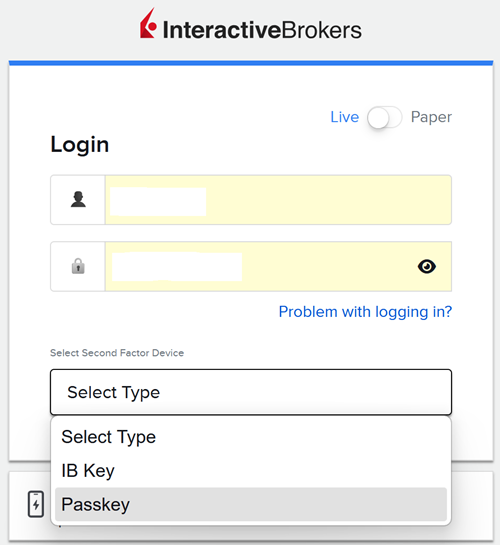
If you have multiple 2FA method, select "Passkey" from the device selection drop-down menu. Click on "Authenticate".
-
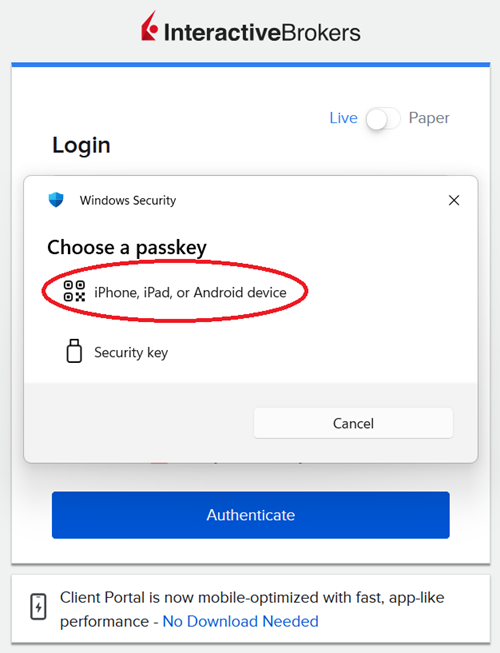
Select the option "iPhone, iPad, or Android device".
-
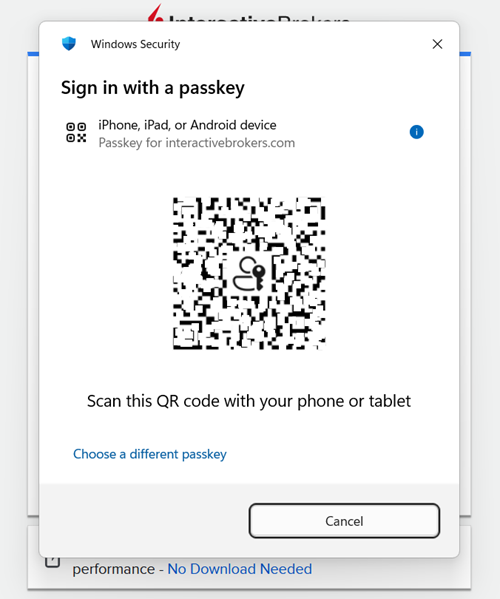
If a QR code appears on the login screen, take your mobile device, open the Camera app and scan the QR code (or tap on the notification you received).
-
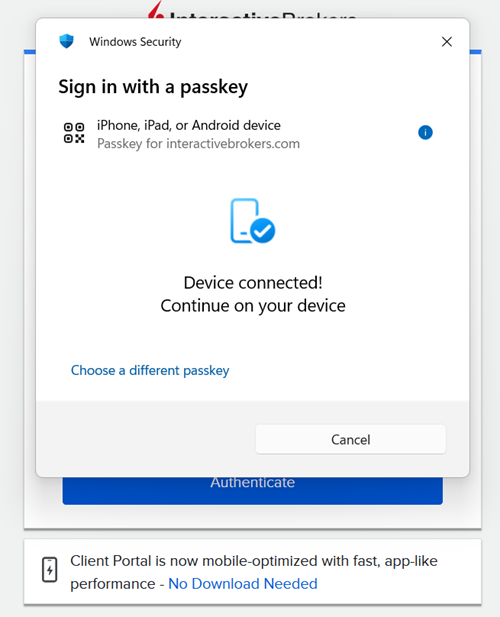
Once the devices are connected, your mobile device will prompt you to authenticate using Face ID, Touch ID, or the mobile device PIN.
-
After a successful authentication, you will be logged in to the Client Portal.
Logging in directly from your mobile device:
-
Open your mobile browser and navigate to the IBKR Client Portal login page.
-
Enter your username and password.
-
Select "Passkey" as your 2FA method (if you have multiple 2FA method).
-
Authenticate using Face ID, Touch ID, or the mobile device PIN.
-
After a successful authentication, you will be logged in to the Client Portal.
Using a Physical Security Key (Yubikey, Google Titan, Token2, etc.) to Log in
-
Navigate to the IBKR Client Portal login page.
-
Enter your credentials and click on "Login".
-
If you have multiple 2FA methods active, select "Passkey" from the device selection drop-down menu. Click on "Authenticate".
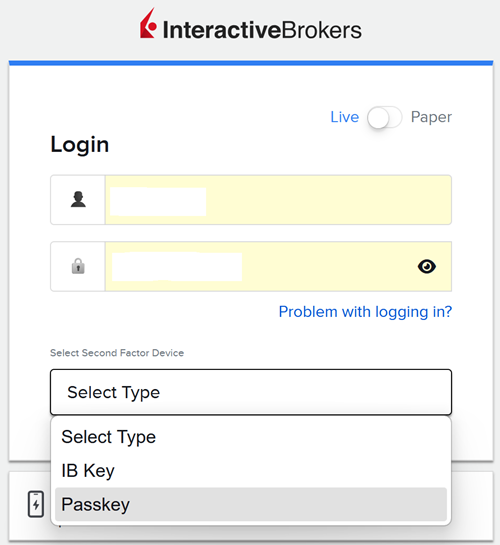
-
Select "Security Key".
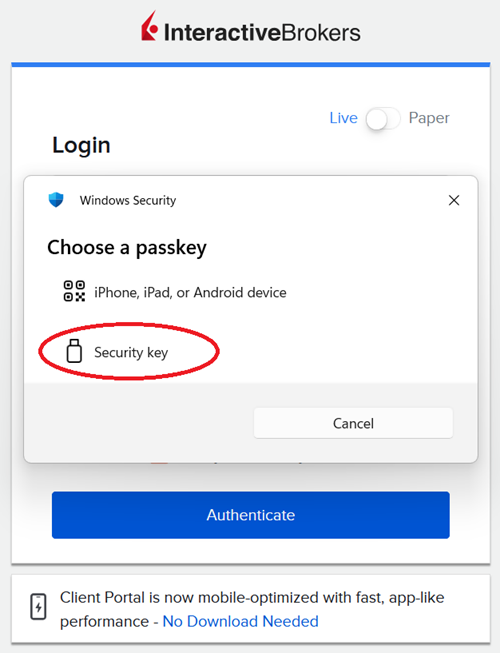
-
Plug your physical security key into your device USB port (or hold it near your device for NFC-enabled keys). When requested, enter your security key PIN.
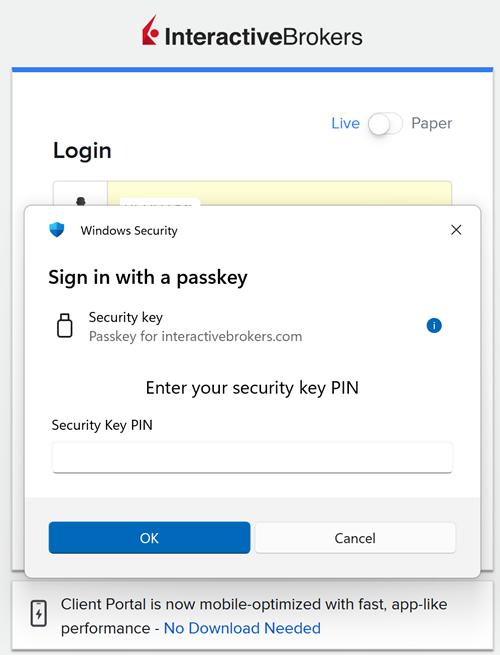
-
Touch the button (or the presence sensor) on your physical security key.
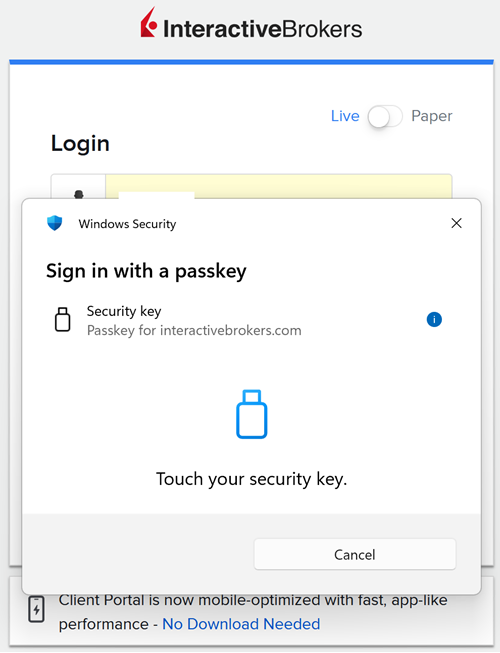
-
You will be logged in to the Client Portal.
Use a Windows Hello Passkey to Log in
-
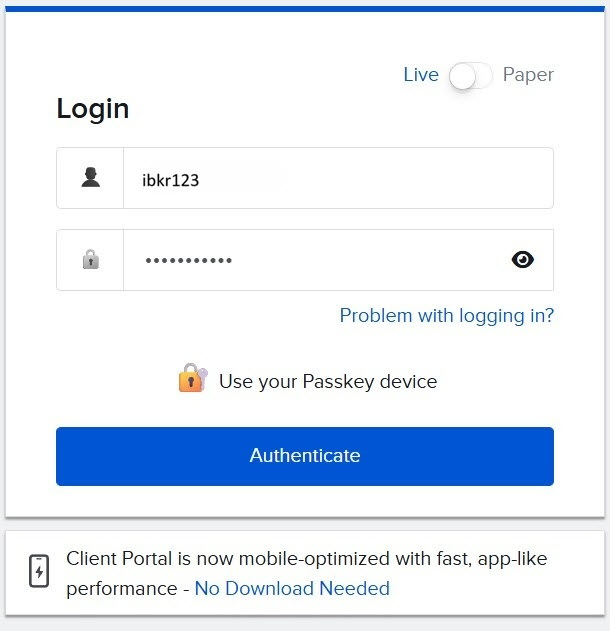
On your Windows PC, navigate to the Client Portal login page and enter your username and password.
-
Tap on "Authenticate".
-
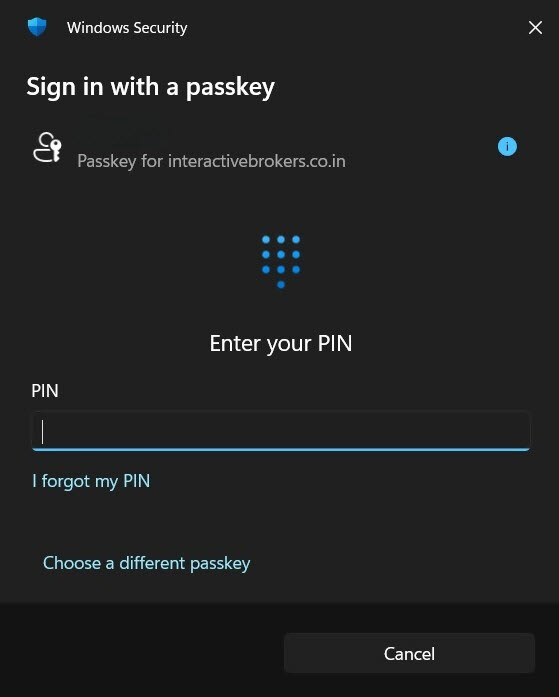
A Windows Security prompt will appear, asking you to authenticate using Windows Hello.
-
Authenticate using your facial recognition, fingerprint, or Windows PIN — whichever method you have configured.
-
Once authentication is successful, you will be logged in automatically.
FAQs
-
I am planning to buy a new mobile device. How can I transfer my passkey to the new device?
-
The passkey authentication prompt doesn't appear when I try to log in.
-
I have multiple passkeys but the system is trying to use the wrong one.
-
The QR code isn't appearing when I try to use my phone to authenticate.
-
I'm trying to use the QR code but my phone's camera won't scan it.
-
My passkey worked before but now it's not being accepted during login.
-
Why is my passkey not being accepted and how do I regain access to my locked account?
-
My passkey is not being accepted and I'm locked out of my account.